Before you start: open the current VOID studio in a modern browser. These instructions describe the development release and use locally generated demonstration audio in screenshots.
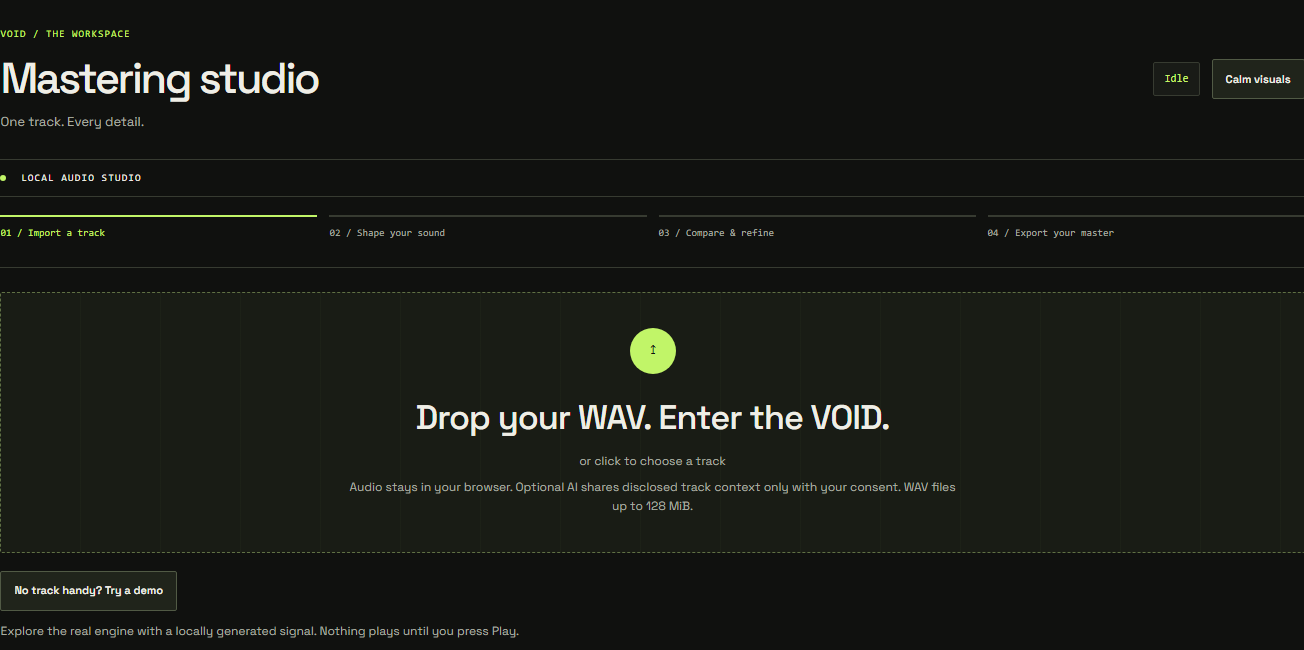
Import will not complete
Use an actual, compatible nonempty WAV. VOID supports compatible WAV files subject to available browser memory. Large or high-resolution files require more memory and may be safely refused on lower-memory devices. Import one file at a time. If memory is exhausted, close other heavy tabs or use a shorter source. Do not rename an unsupported format to .wav. Auto and AI require mono/stereo even when manual processing can open more channels.
Playback is unavailable
Start playback with a click and check the operating system output device and browser sound permissions. Live processed preview requires a secure context and AudioWorklet support. A browser may support import or offline rendering while lacking a required live playback capability. Keep error and recovery controls visible; do not assume silence means processing succeeded.
Render or export failed
Cancel the operation if necessary and wait for its state to settle. Keep your source and export the settings if possible. Retry with fewer competing browser workloads. For unsupported MP3 rates or channel counts, use WAV. Check the downloads panel for a blocked or completed export before starting another.
Account or project trouble
Verify your email before signing in. Use the recovery and verification links on Account to request a fresh email if a link expired. Responses are intentionally generic so the form does not disclose who has an account.
If a save fails or your session expires, the open audio remains local. Sign in again and reconnect the account. A conflict means another edit exists: save a copy or deliberately reload the server version. A missing source file cannot be recovered from VOID because projects do not upload audio.
AI is not available
Local Auto does not require an AI service. Optional AI is currently administrator-only and requires configuration plus explicit per-track consent. It uses permitted measurements and context, not an uploaded audio recording. Members should use Auto or the manual chain in this release.